Budget Tracker Documentation
Dashboard Overview
The main dashboard shows all of your budgets and budget groups at a glance. Each column provides key metrics for tracking your ad spend against your goals. The numbered annotations in the image below correspond to the descriptions that follow.
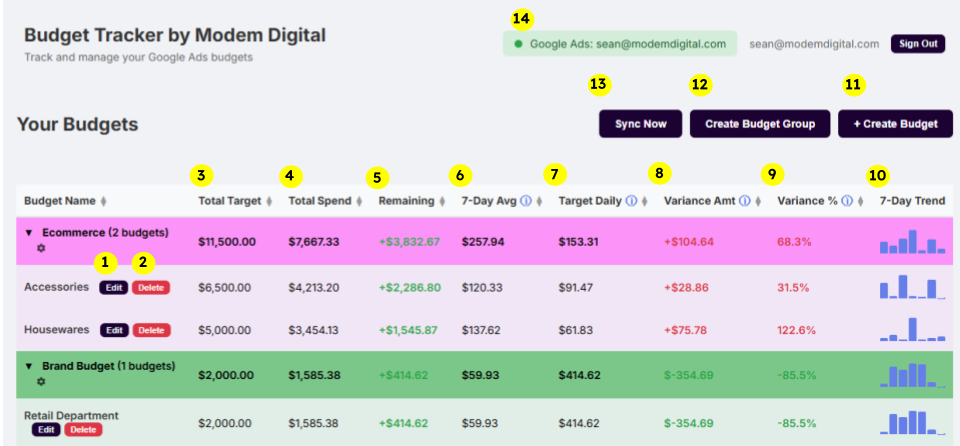
- 1 Budget Group – Budgets can be organized into collapsible groups with custom colors. Click the arrow to expand or collapse the group.
- 2 Budget Settings – The edit button next to the budget name will open the Budget Setting window, which lets you edit budget names, assign campaigns, and set timelines and goal amounts for the budget.
- Delete Budget – The red button next to each Budget name will delete that budget and all goals and time periods associated with it. This cannot be undone. Campaign data is not affected, and campaigns can be reassigned after a budget they were in was deleted.
- 3 Total Target – The total goal amount you would like to spend during the current budget period.
- 4 Total Spend – How much has been spent so far during the current budget period by the campaigns assigned to the budget.
- 5 Remaining – How much money is left in the current period's budget before you hit your goal.
- 6 7-Day Avg – How much the campaigns assigned to the budget have spent in the last 7 days, divided by 7.
- 7 Target Daily – The average amount your campaigns should spend each day to meet your target goal for the current period.
- 8 Variance Amount – Difference between the 7 day average and the Target Daily.
- 9 Variance % – Percentage of difference between the 7 day average and the Target Daily amount.
- 10 7-Day Trend – Shows the previous 7 days of spending individually in a small bar graph so you can see recent trends in spending. You can hover your mouse over any of the bars to see the exact ad spend for that day.
- 11 Create Budget – This creates a new blank budget and opens the Budget Settings window so you can assign campaigns and set the timeline and goals of the budget.
- 12 Create Budget Group – Group and summarize multiple budgets together and assign them a custom color.
- 13 Sync Now – Manually sync campaign performance data with a connected Google user account.
- 14 Connect to Google Account – Click on the red "Not Connected" button to start. This will take you to a prompt to login to the Google user account you want to connect to and ask you to authorize the access the budget tracker needs to retrieve data from your accounts.