Budget Tracker Documentation
Creating a Budget
Click on the create budget button in the upper right corner of the main dashboard to create a new budget. This will open the Budget Settings screen. Here you can name your budget, select which ad campaigns you want to include in this budget, and the time periods and goal amounts for your budget. Any changes you make will not take effect until you click on the save button.
Adding Campaigns to a Budget
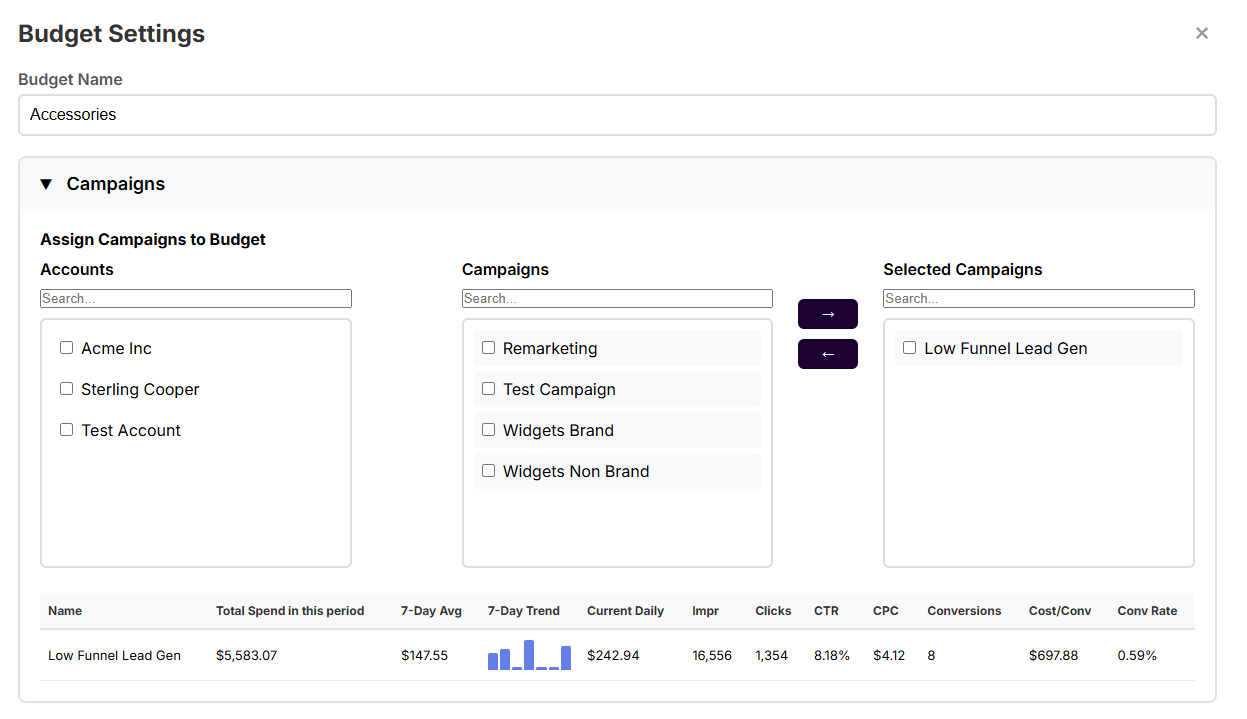
If you have one or more Google Ad accounts connected to the budget tracker, these will show in the left hand selection menu. All campaigns with activity in the last 30 days will show up in the middle selection section. Click the checkbox next to all the campaigns you want to include in the current budget, then click the right arrow to add them into the budget. You can remove campaigns from a budget by clicking on the boxes next to the campaigns you want to remove and clicking the left arrow to remove them from the budget.
Campaigns cannot be in more than one budget at a time. If you add a campaign to a different budget it will remove it from the budget it was formerly assigned to.
Budget Timelines and Goals
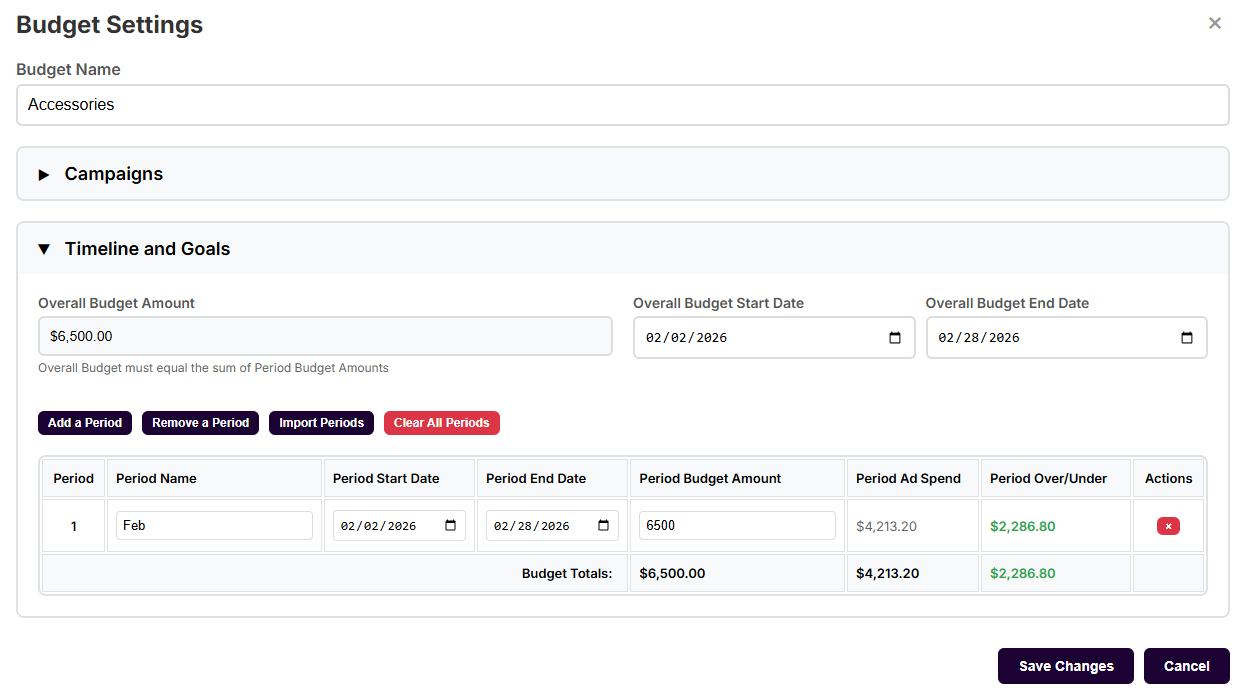
Budgets must have an Overall Budget Amount and Overall start and end dates. The overall timeframe and budget amount can then be divided into one or more time periods, each of which has a goal amount of ad spend. For example, if you have an annual budget of $120,000, you can divide that into 12 monthly budgets of $10,000 each. The time periods and their goals are fully customizable, but must follow these two rules:
- All time periods must fall within the overall budget start and end dates. They don't have to account for the entire time frame of the budget, so you can have gaps if your campaigns only run seasonally.
- The sum of all the goal amounts must equal the Overall Budget Amount.
Importing Goals and Periods from a Spreadsheet
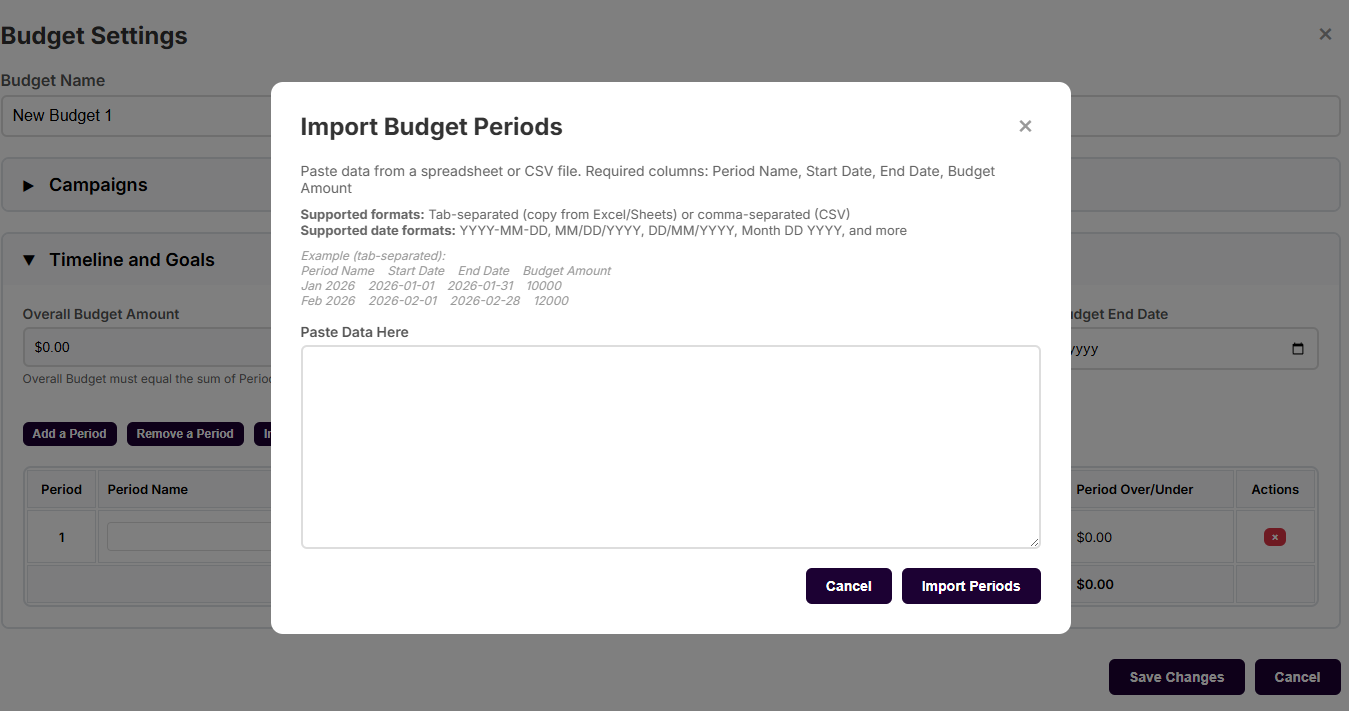
Instead of manually entering each of the time periods and goal amounts, users can copy and paste a table with all of this information. The following format and headers must be used to successfully import multiple time periods and amounts:
| Period Name | Period Start Date | Period End Date | Period Budget Amount |
|---|---|---|---|
| Budget 1 | 1/1/2026 | 12/31/2026 | $10000 |
Supported formats: Tab-separated (copy from Excel/Sheets) or comma-separated (CSV)
Supported date formats: YYYY-MM-DD, MM/DD/YYYY, DD/MM/YYYY, Month DD YYYY, and more